
}
WOL Working Principle
WOL (Wake‑on‑LAN) is a hardware‑based management feature. When a PC is powered off or in hibernation mode, this function enables the network card to receive specific data packets and send power‑on instructions to the motherboard to boot up the device.
Wake‑on‑LAN requires hardware support from both the motherboard and network adapter. Almost all modern hardware supports WOL (hardware manufactured before 2000 may not support this function). However, WOL is disabled by default in software configurations for security reasons. Multiple online resources describe how to enable this hardware feature; key steps are briefly introduced below. The BIOS interface varies across device vendors, yet the configuration workflow remains simple.
WOL Activation for Network Adapter on ASUS X58 Sabertooth Motherboard: Enter BIOS and set Power On By PCI Devices or Power On By PCIE Devices under APM Configuration to Enable.
If the above‑mentioned options are available in BIOS, your hardware supports WOL. After enabling these settings, the device can be woken up over the local area network.
Note: WOL will not work after an abnormal shutdown (e.g. forced power‑off via the power button). Wake‑on‑LAN is functional only after a normal shutdown, which keeps the network adapter active to receive network packets.
With the basic principle clarified, you may proceed to test remote wake‑up operations.
Overview of WOL Utilities
Multiple software tools are available for wake‑on‑LAN implementation, all operating on the same core principle. Common WOL applications are listed below: ‑ LanHelper ‑ Magic Packet Utility ‑ NetWaker for Windows ‑ WakeOnLanGui
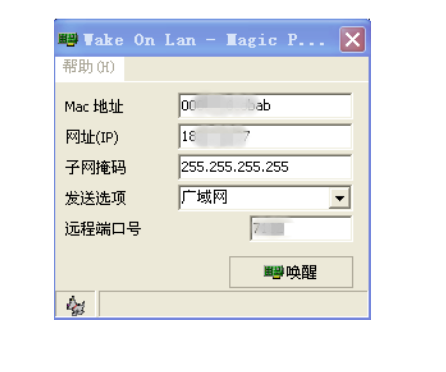
The following configuration steps are demonstrated using WakeOnLanGui.
This tool supports device wake‑up within the local area network (LAN) as well as wake‑up over the Internet (WAN).
First, obtain the MAC address of the target network adapter of the remote PC (retrievable from network adapter properties). Other parameters are not mandatory for LAN wake‑up. Simply input the correct MAC address and click Wake Me UP to power on the target machine.
For Internet‑based wake‑on‑LAN, confirm that local‑network wake‑on‑LAN works properly first. Within LAN, the software broadcasts Magic Packets. Upon receiving the packet matching its MAC address, the target network adapter triggers system boot‑up.
Wake‑on‑LAN over the Internet
Unlike LAN environments, wide‑area networks contain routers and other intermediate network devices, which may block Magic Packet delivery to the target network adapter. Router configuration is therefore required to implement WOL over the Internet.
Prerequisite: Ensure the router has normal Internet access with a public IP assigned by your internet service provider. Access the router web‑management page at http://172.18.100.1/userLogin.asp.
Navigate to Address Translation → Virtual Servers. Create a new entry:
‑ External port: 7101 (any unused port number is acceptable)
‑ Internal server IP: Local IP address of the target PC (example: 172.18.7.101)
‑ Service name: WOL_vmnic1‑ Enable the entry.
This rule forwards all incoming traffic received by the router on port 7101 to the target host 172.18.7.101.
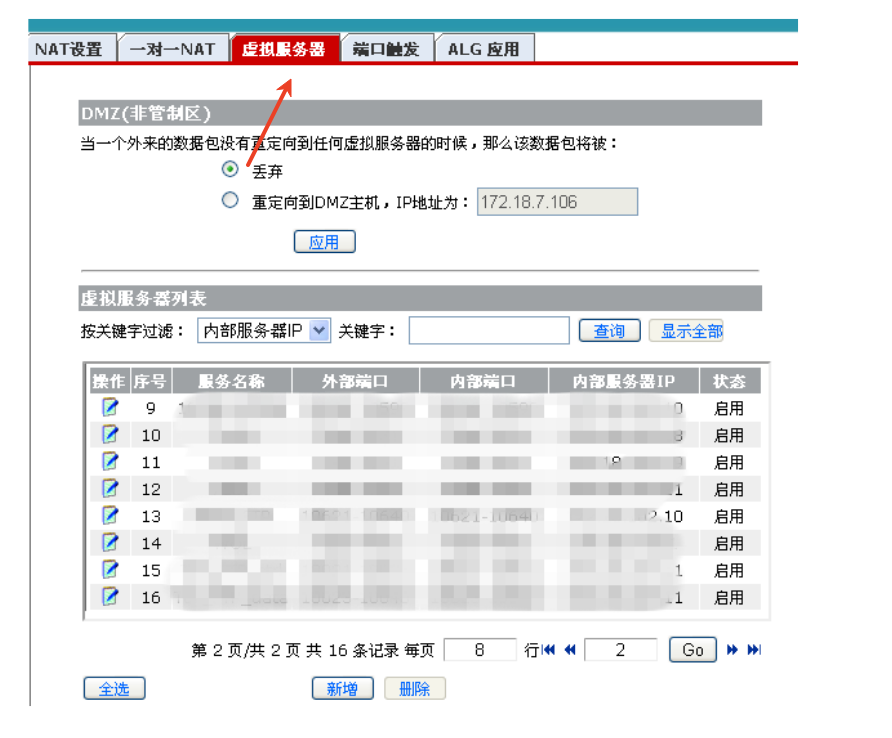
Go to IP‑MAC Binding → Static ARP Binding Settings. Add a new binding entry:
‑ MAC address: MAC address of the target PC’s network adapter (e.g. 00‑0B‑2F‑XX‑XX‑XX)
‑ IP address: 172.18.7.101 (the same local IP configured in the port‑mapping rule above)
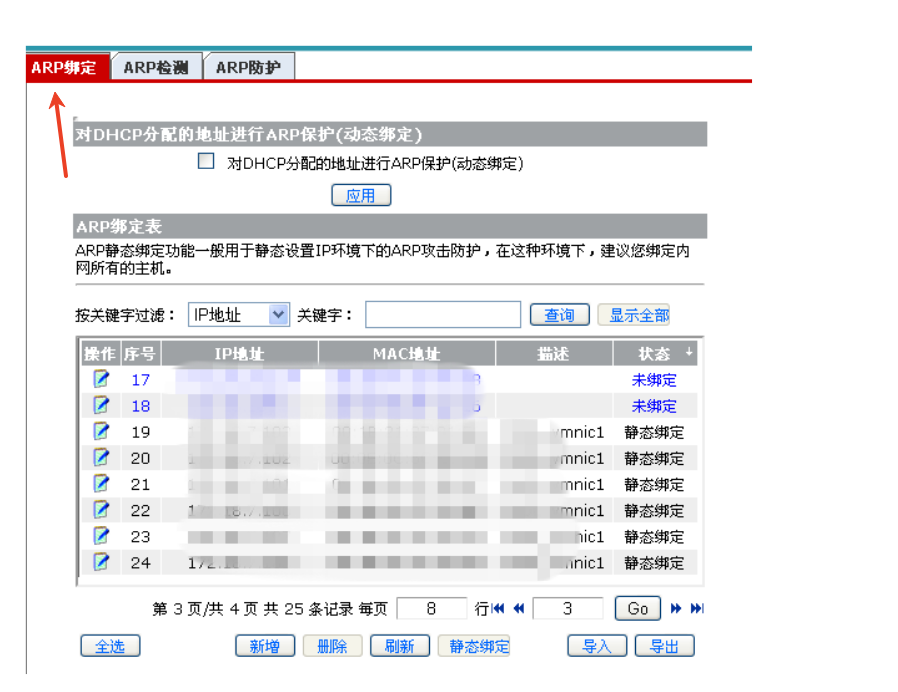
When the target PC is powered off, ARP broadcast cannot resolve the host IP. Without static ARP binding, the router will discard incoming Magic Packets. Static IP‑MAC binding ensures packets are forwarded directly to the specified network‑adapter MAC address.
After completing the above settings, wake‑on‑LAN over the Internet is theoretically functional. Additional optimizations are recommended for stable operation.
Configure static address allocation in the DHCP server. Permanently assign the local IP 172.18.7.101 to the MAC address 00‑0B‑2F‑XX‑XX‑XX, so the target host always obtains this fixed IP after startup.
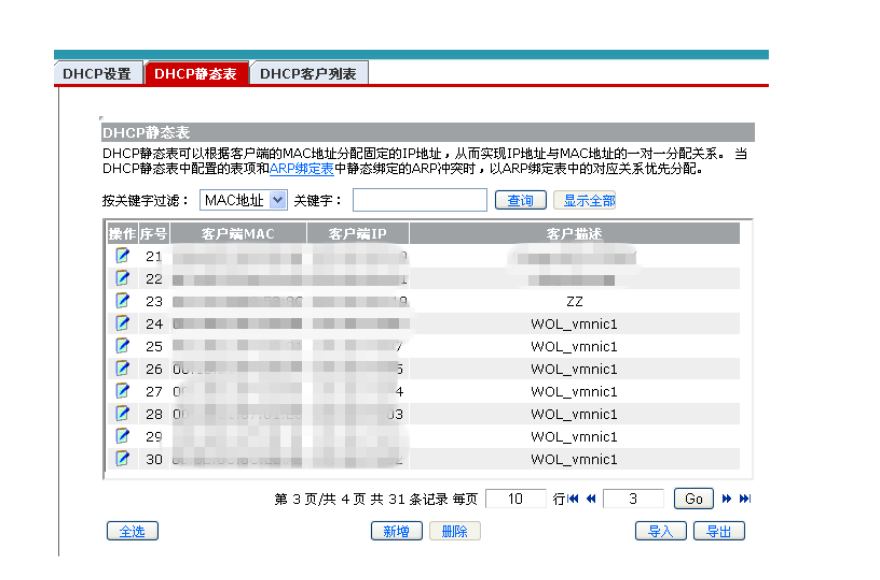
Log into the router web UI (http://172.18.100.1/userLogin.asp) to check the WAN‑side public IP address and subnet mask.
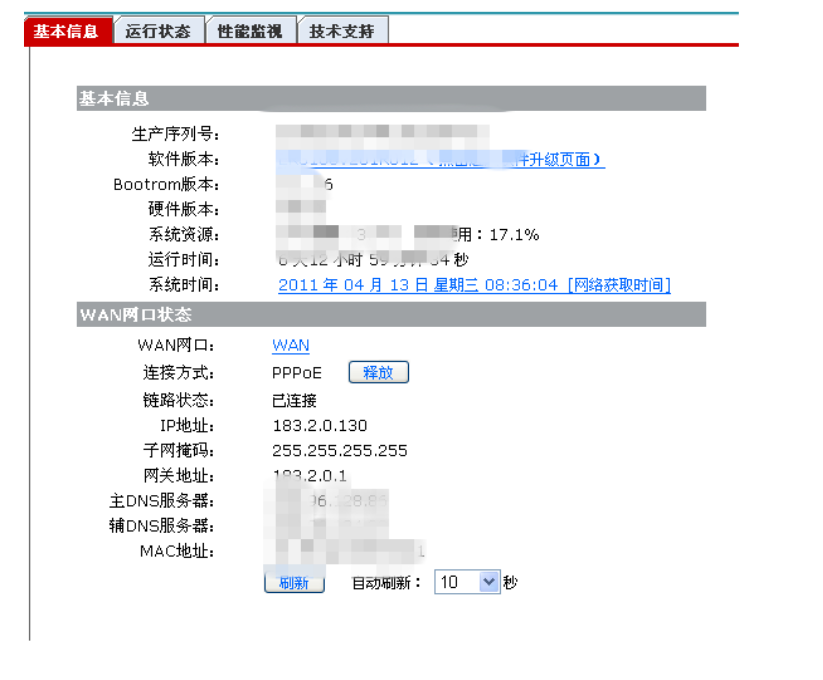
Reboot the router to apply all configuration changes. You may then use the Windows‑based WOL tool to perform wake‑on‑LAN over the Internet.
Contact: EGSMTPC
Phone: +86 13418881073
Tel: +86 13418881073
E-mail: coral@eglobaltech.cn
Add: 16D, QUANZHI Science & Technology Building, Maozhoushan Industrial Park, Hou Ting Community, Sha Jing Street, Bao'an District, Shenzhen, 518104 China